 Vidlark
Every feature. All free.
Everything Vidlark does, grouped by what you are doing. There is no paid version: every line on this page is in the free app.
- Free
- No account
- No watermark
- No time limit
Recording
One record button
Your camera and mic start together, and everything stops together.
Starts on your face
Every take starts on your camera. Share your screen whenever you are ready.
A 3, 2, 1 first
A countdown runs before anything records, so you start talking at the beep. Press the button again to call the take off.
Me and Screen
One click switches the video between your camera filling the screen and your screen. Your camera grows out of the face circle and shrinks back into it.
Your face in the video
Put your face over the screen as a circle, square, oval or wide shape, or leave it out.
Back to the recorder
During a take, bring the app's window up over what you are sharing. The take keeps going, and the window never shows in the video.
Framed for you
Your face stays framed like a camera operator would do it: still while you talk, a smooth glide when you move. The face box on your screen does it live, and wherever the finished video shows your camera full size, the picture follows your face too. Turn it off in Settings.
Your screen
The whole screen or one window
Pick from pictures of your screens and windows. Your last pick comes up already picked.
Windows on other desktops
Share a window that is full screen on another desktop, like Chrome. Picking it moves the Mac there.
Follows one window
Sharing one window records only that window, even when something covers it, and the face circle moves with it.
The app stays out of the video
The recording box and the app's other windows never appear in the recording.
The Mac's sound, your way
Record sound from every app, from one app only (like a video in Chrome), or not at all, and change it at any moment of the take.
Cameras and phones
Any camera
Your Mac's camera, a USB webcam, a real camera through an HDMI to USB capture card, or an iPhone through Continuity Camera.
Phones over Wi-Fi
Scan a QR code with an iPhone or an Android phone and it films over your Wi-Fi, with no app and no cable, at up to 1080p and 30 frames a second.
Up to four phones
Film from up to four phones at once, each from its own code and each saved as its own file.
Wide or tall
Each phone films Wide 16:9 for YouTube or Tall 9:16 for Shorts and Reels, and keeps that shape however it turns.
Phones rest between takes
Between takes a phone shows its own picture so you can frame the shot, but sends nothing to the Mac unless the Mac is showing its picture, which saves its battery.
Every angle lines up
Each extra camera is saved with the same sound as the main one, so all the angles line up on their own.
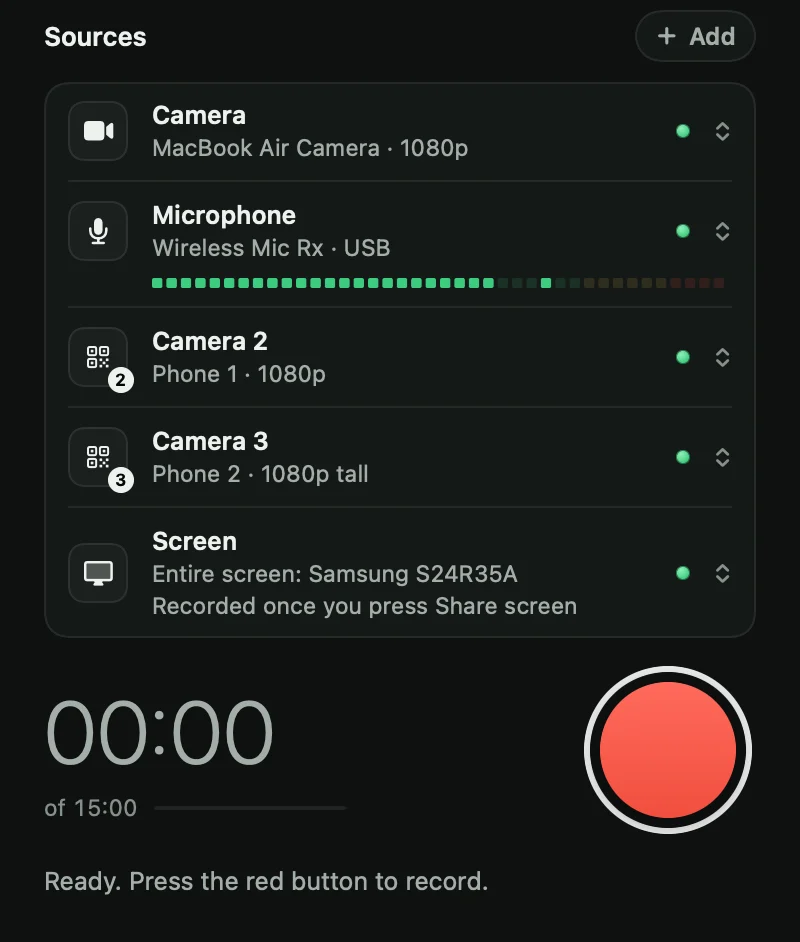
Microphones
Any microphone
A USB mic, a wireless kit's receiver, AirPods, your Mac's own mic, or a phone. AirPods record at phone call quality, and the app tells you so.
Several at once
Every mic records its own file and has its own level meter while you set up.
Pick the video's sound
Choose which mic the finished video uses. The others still record.
A filming phone's own sound
A phone that films an angle can record its own mic too, as its own file.
A phone as a wireless mic
Scan a code with a spare phone, tap Start microphone, and keep it about a hand's width from your mouth.
One mute switch
Mute a phone's mic from the phone or from the Mac. Muted, the mic is fully off, and its file stays in step.
Hear every mic
While watching a take, play any mic under any camera to hear which sounds best.
After you stop
Every file lined up
The camera, screen and mic files are lined up by their sound.
The finished video
For a take with your screen,
video.mp4is what was on the screen, with your camera filling it whenever you clicked Me.A transcript
words.jsonhas every word you said with its time. It needs a free speech model, see How to use it.YouTube chapters
chapters.txtis ready to paste into a YouTube description.Your retakes
Say "retake" and repeat the line.
retakes.jsonlists every retake with its time.Smaller camera files
The camera file loses its empty padding, about a third of its size, with no change to the picture or the sound.
A plain report
report.mdsums up the take in plain words.Quick videos
Switch off Transcript and chapters in Settings when a video only needs the files.
Your recordings
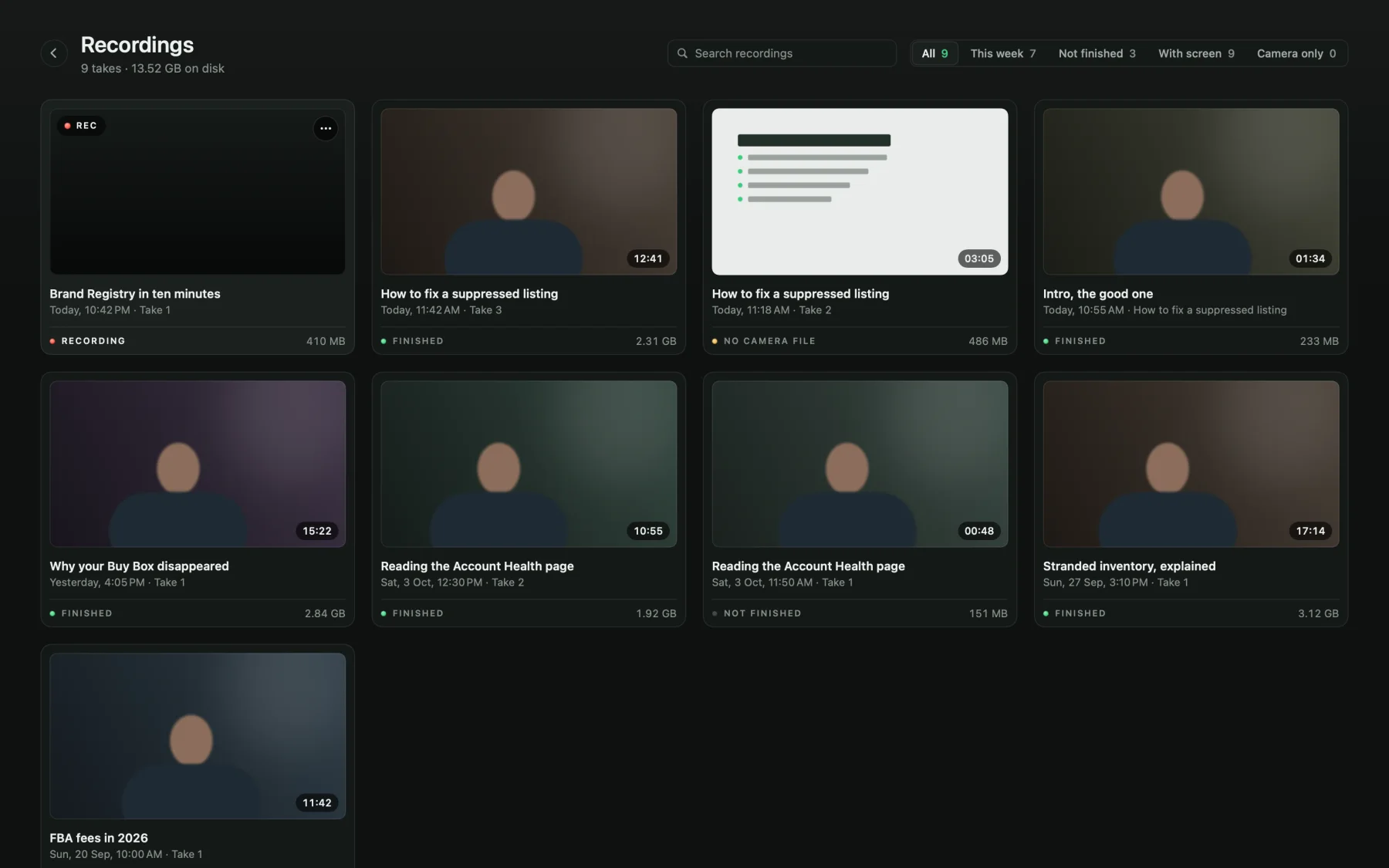
Every take with a picture
See every take with a picture, its length and its size.
Watch in the app
Switch between the finished video, the camera and the screen at the same moment of the take.
Search and filter
Search by name, and filter by This week, Not finished, With screen or Camera only.
Rename, copy or delete
Rename a take, save a copy, or delete it, which moves it to the Trash.
Watching live
From any browser
Watch the shoot from another laptop or phone: every camera, the screen while recording, the mic level and the checks. No login.
Listen
Hear the mic as it is recorded, about a quarter of a second late, on headphones.
Pin and full screen
Make any camera or the screen the big picture, or fill the screen with it.
Home Wi-Fi or Anywhere
It works on your Wi-Fi. Anywhere works from any internet connection, through a free Cloudflare tunnel.
A secret link
The link is the only key. New link stops every old link working.
Checks and settings
Checks before you start
Camera, mic, screen, disk space and battery, each with a plain fix when something is wrong.
A Low Power Mode warning
It tells you when Low Power Mode is on, because that can make a take stutter.
Light mode for smaller Macs
With 8 GB of memory or less, or in Low Power Mode, the camera stays at 1080p and 30 frames a second.
Settings in plain words
Every setting says in one sentence what it does.
A guide to connecting cameras
Steps for an iPhone, a webcam or a real camera, with a list of the cameras your Mac sees right now.
Safe, light, private
Saved every 2 seconds
The files are written in 2-second pieces, so a crash keeps the take.
A camera that stops is caught
If the camera stops sending pictures, the take stops within about 6 seconds and says why.
Light on your Mac
About 7% of one processor core between takes on a MacBook Air. When you switch to another app, the camera turns off after about 20 seconds and wakes when you come back.
Private
Your recordings and transcripts never leave your Mac. The live view reaches beyond your Wi-Fi only if you switch on Anywhere.
All of this, free.
No account, no subscription, no watermark and no time limit. The code is on GitHub.