Tutorials
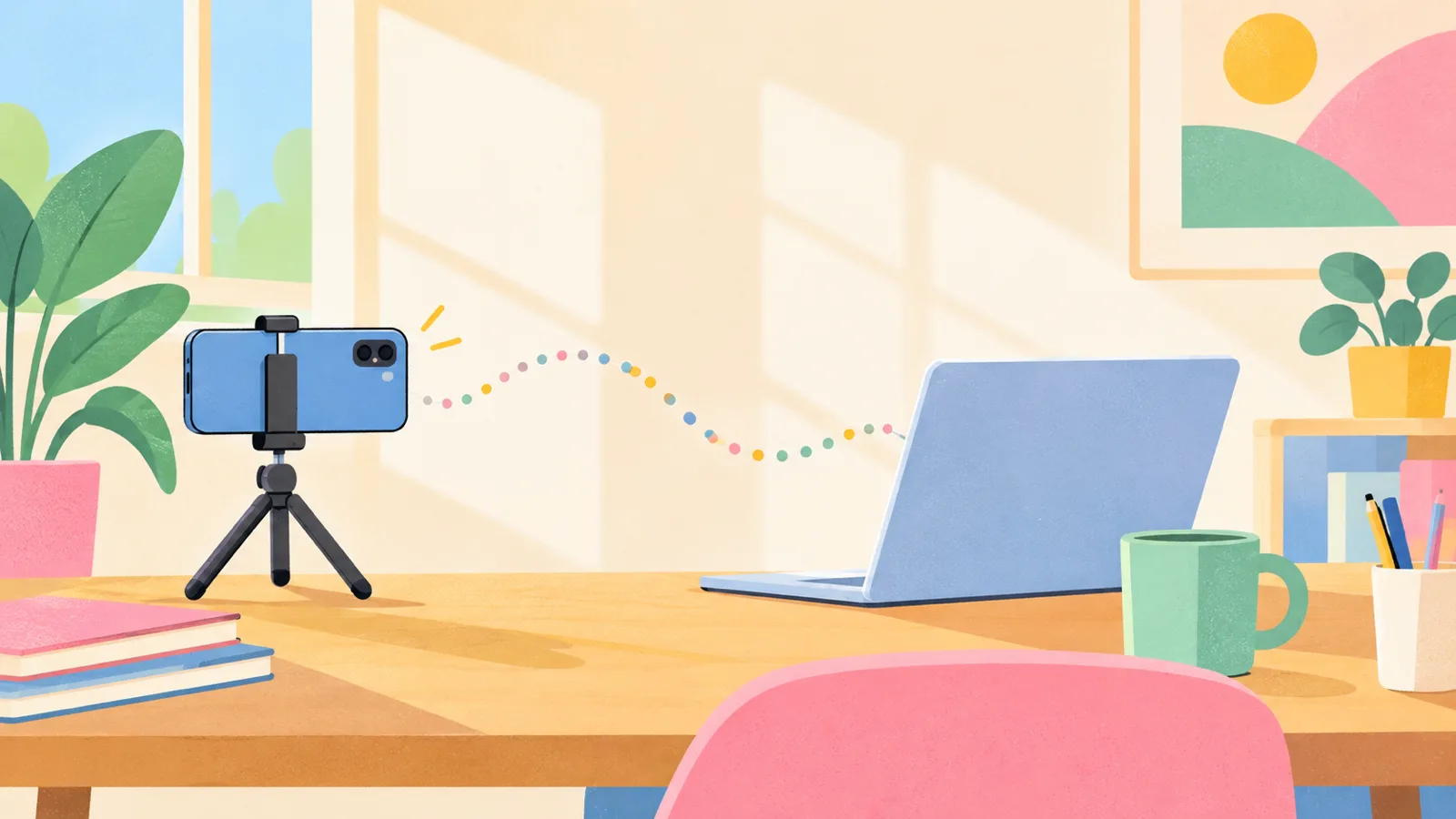
Use Your iPhone as a Webcam for YouTube Videos
Two ways to film YouTube videos with your iPhone as your Mac's camera: Continuity Camera, or Wi-Fi and a QR code with any Apple Account. Setup and framing tips.
 Vidlark
Free
Vidlark
Free
Guides, tutorials and comparisons for recording videos with your camera, mic and screen, on a Mac or a Windows PC.
Tutorials
Two ways to film YouTube videos with your iPhone as your Mac's camera: Continuity Camera, or Wi-Fi and a QR code with any Apple Account. Setup and framing tips.
Use cases
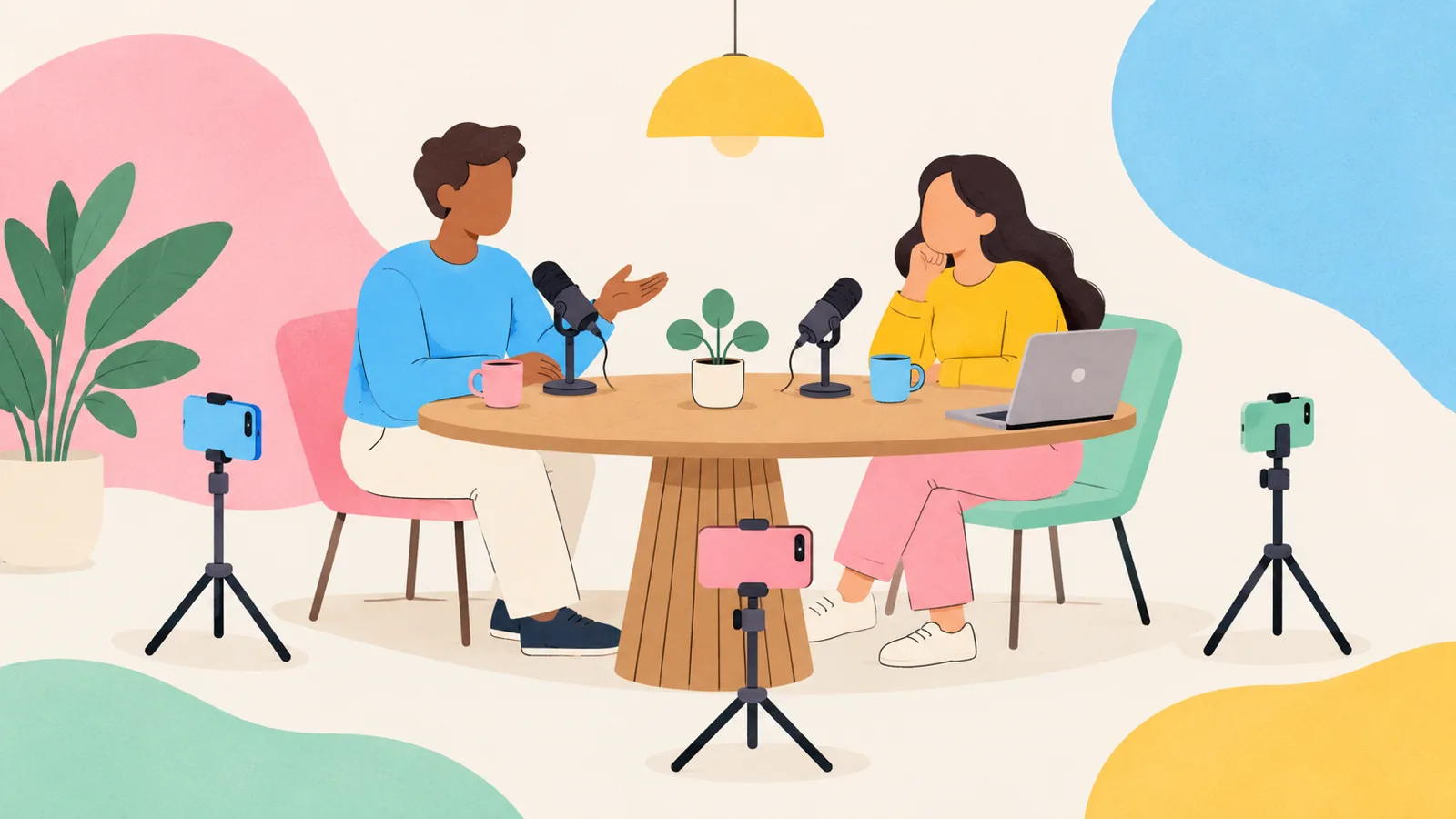
Film a two or three person video podcast with phones as cameras and a mic for each person, all on one Mac, every angle synced by sound. Setup to final edit.

Comparisons
Cap, Screenity, OBS Studio and Vidlark compared: licences in plain words, share links, self-hosting, project health on GitHub, and which one fits your videos.

Comparisons
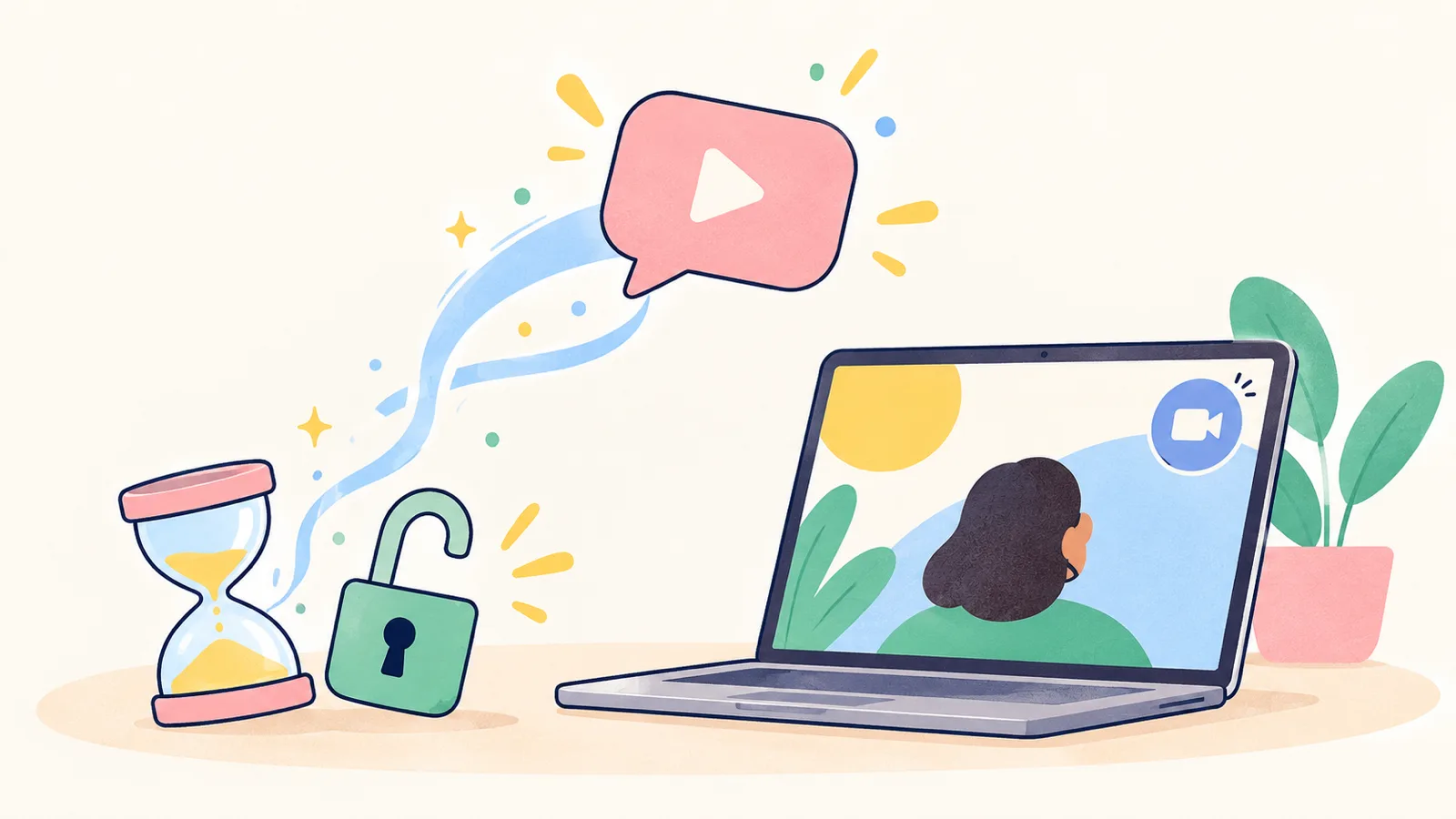
Loom's free Starter plan, checked on 9 October 2026: the 5 minute cap, the 25 video limit, 720p, no downloads, what Business costs, and free ways around each.
Tutorials
The whole path from script to upload on a Mac, with free tools: plan, light, record your face and screen, fix mistakes, add chapters and publish to YouTube.

Tutorials
Three free ways to get your face and your screen in one video on a Mac: QuickTime's floating camera, the Screenshot toolbar, or one button in Vidlark.

Use cases
A repeatable home setup for recording course lessons in batches: plan short lessons, script each one, record a day's list, and upload in your platform's format.

Comparisons
The free Mac screen recorders with no watermark and no time limit, which ones also record your camera and the Mac's sound, and which Macs each one runs on.
Comparisons
Free recorders with no time limit, no watermark and no account, and the one honest trade-off: no instant share link. Which fits your videos, and when Loom wins.
No account, no subscription, no watermark and no time limit. On a Mac, and on Windows in beta.