Vidlark
Record a Video Podcast in One Room With Phones
Film a two or three person video podcast with phones as cameras and a mic for each person, all on one Mac, every angle synced by sound. Setup to final edit.
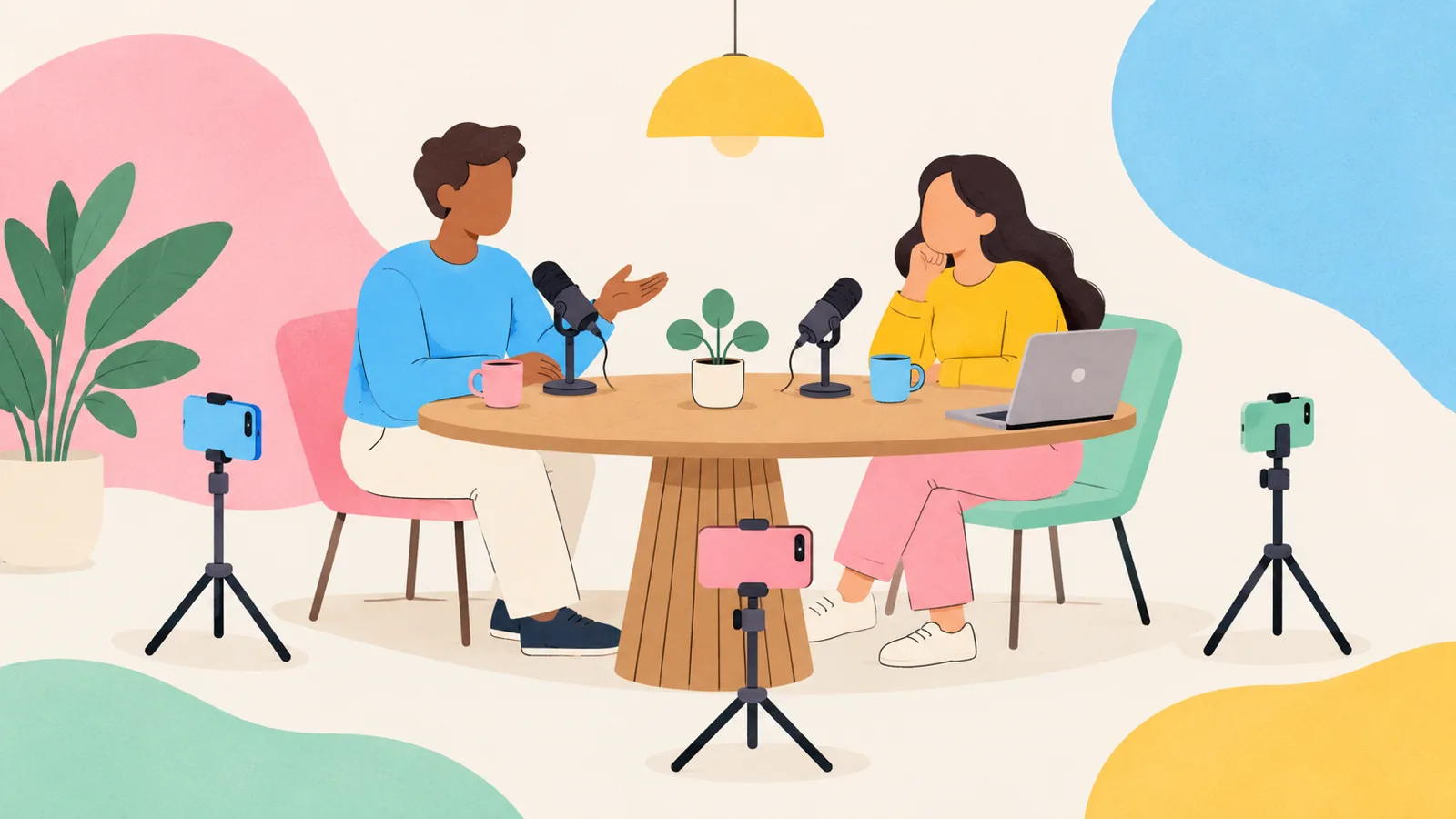
To record a video podcast with multiple cameras in one room, put a phone on a stand for each angle you want (a wide shot and a close-up of each person is the classic setup), give each person their own mic, and record everything at once on one computer so every file lines up. With Vidlark on a Mac, up to four phones join over Wi-Fi with no app, each mic records its own file, and everything is synced by sound when you stop.
This guide covers angles, mics, placement, recording, editing and the problems that catch people out.
Angles that make a podcast watchable
A single wide shot gets dull fast. Cutting between angles keeps viewers watching, and it hides edits: when you cut out a cough, a switch to the other person's face makes the join invisible.
| People | Angles | Why |
|---|---|---|
| 2 | 3: a wide of both, a close-up of each | The standard. Cut to whoever is talking, go wide for laughs and back-and-forth. |
| 3 | 4: a wide, and a close-up of each | One close-up per person, plus the wide to show reactions. |
| 2, on a budget | 2: a wide and one close-up | Start here and add a phone later. |
Shooting Shorts too? Make one angle Tall 9:16. A tall close-up of the main speaker gives you ready-framed clips for Shorts and Reels with no cropping.
Phones as cameras: what you need
- A Mac with Vidlark. Vidlark is free and open source, with no account, no watermark and no time limit. It needs Apple silicon (M1 or newer) and macOS 15 or later, and there is no download button yet: you build it once with Xcode and a free Apple Development certificate. See the install guide. (The Windows 11 beta does not support phones yet.)
- Phones. Any iPhone on iOS 16.4 or newer, or an Android phone with Chrome. Old phones from a drawer are perfect. Each films up to 1080p at 30 frames a second.
- The same Wi-Fi for the Mac and every phone.
- A stand and a charger for each phone. Long recordings drain batteries.
The Mac's own camera, or a USB webcam, can be one of the angles too. Your phones need no app and no account: each one opens a page in its browser. Our guide to using your iPhone as a webcam explains the connection in more detail.
Mics: one per person
Sound decides whether people listen to the end. One mic in the middle of the table picks up the room more than the voices. Give each person their own mic, close to their mouth.
You can mix and match. In Vidlark, press + Add and pick:
- A USB mic or a wireless kit's receiver under Another microphone.
- A spare phone as a wireless mic: pick A phone as a microphone, with a QR code, scan it, tap Start microphone, then Allow. Keep it about a hand's width from the person's mouth.
- A filming phone's own mic: open that phone's row menu and pick Record this phone's sound too. Handy, but a phone a metre away will not sound as good as a mic close up.
AirPods and other Bluetooth mics record at phone call quality, so they are the last choice.
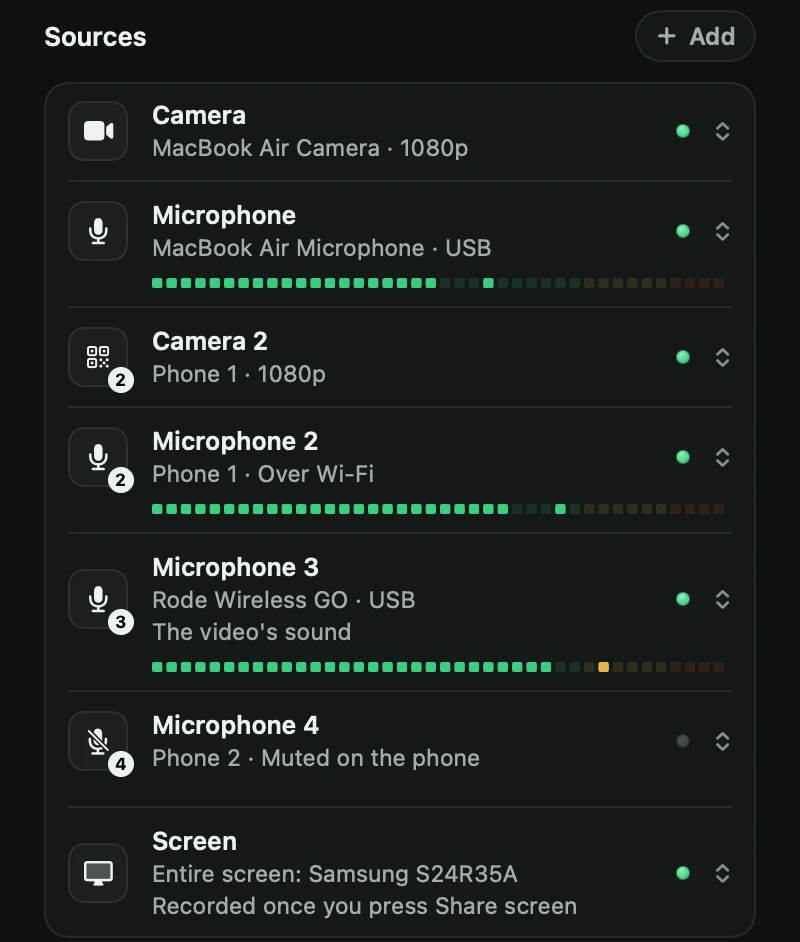
Every mic records its own file. One of them is the main mic (the Microphone row), which goes into the camera files and is what everything lines up against. To pick which mic the finished video uses, open that mic's row menu and choose Use for the video's sound.
A phone mic's Mute is one switch shared by the phone and the Mac. Tap Mute on the phone, or pick it in the phone's row on the Mac, and either side can unmute. While muted, the file stays silent for that stretch, so it still lines up.
Placing phones and people
- Sit people at an angle, not side by side facing the camera. Across a corner of a table works well.
- Cross the close-ups. Put each person's close-up camera roughly where the other person sits, a little to the side, so each person looks across towards it while they talk to their guest. It reads as natural conversation.
- Keep the wide shot on the middle line, far enough back to fit both people.
- Lenses at eye level, all at about the same height, so cuts do not jump.
- Mics close, cables tidy. A mic just out of frame below the chin.
- Light the faces. One soft light per person, or a window to the side of the table. Avoid a bright window behind anyone.
Recording everything at once on one Mac
- Add each phone. Press + Add, then Add a phone with a QR code. Scan the code with the phone and tap the link. The first time, the phone warns that the connection is not private: the link is Vidlark's own, only on your Wi-Fi. On an iPhone, tap Show Details, visit this website, Visit Website; on Android, Advanced, then Proceed. Pick Wide 16:9 or Tall 9:16, tap Start camera, then Allow.
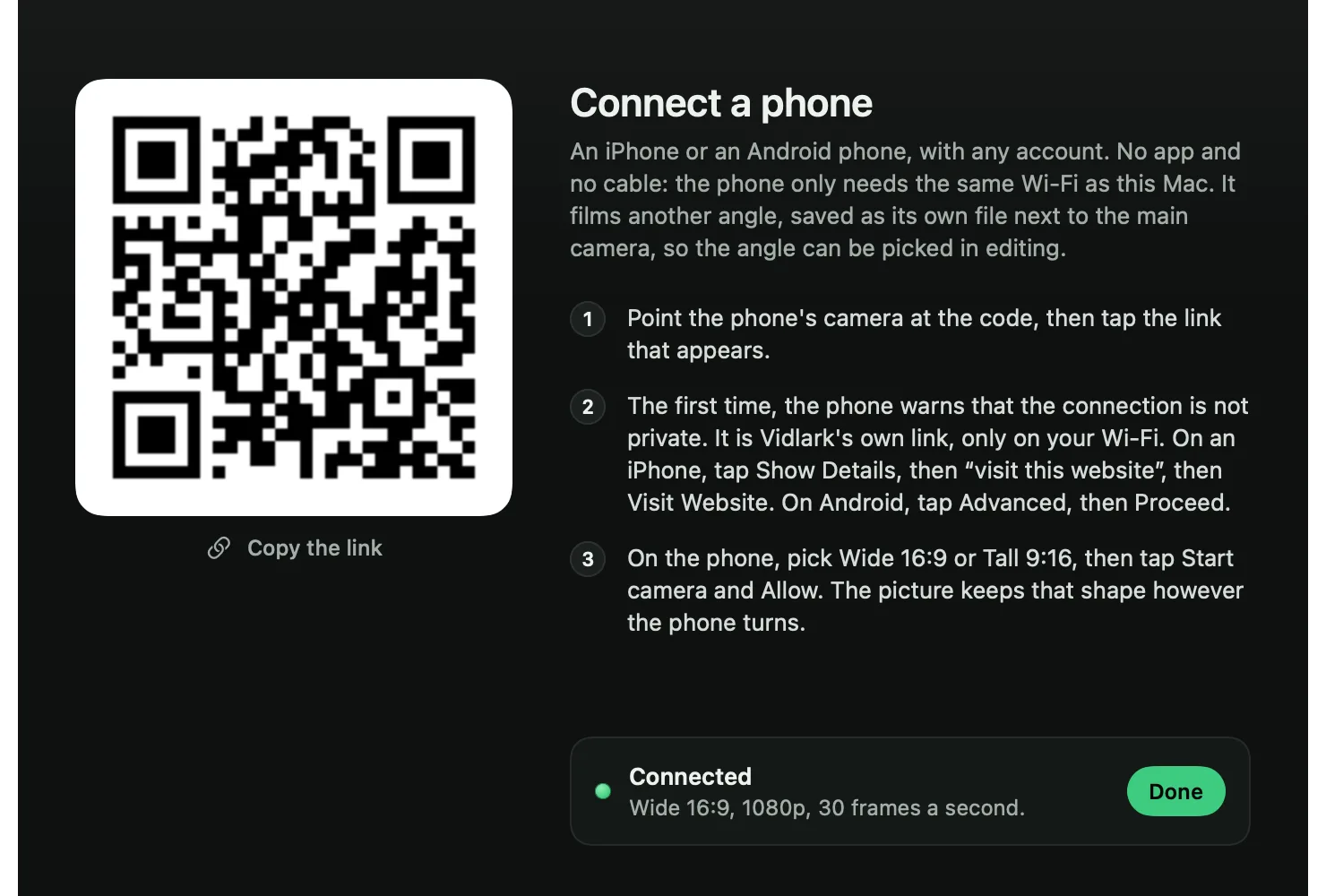
- Repeat for each phone. They appear as Camera 2, Camera 3 and so on, each with a lamp.
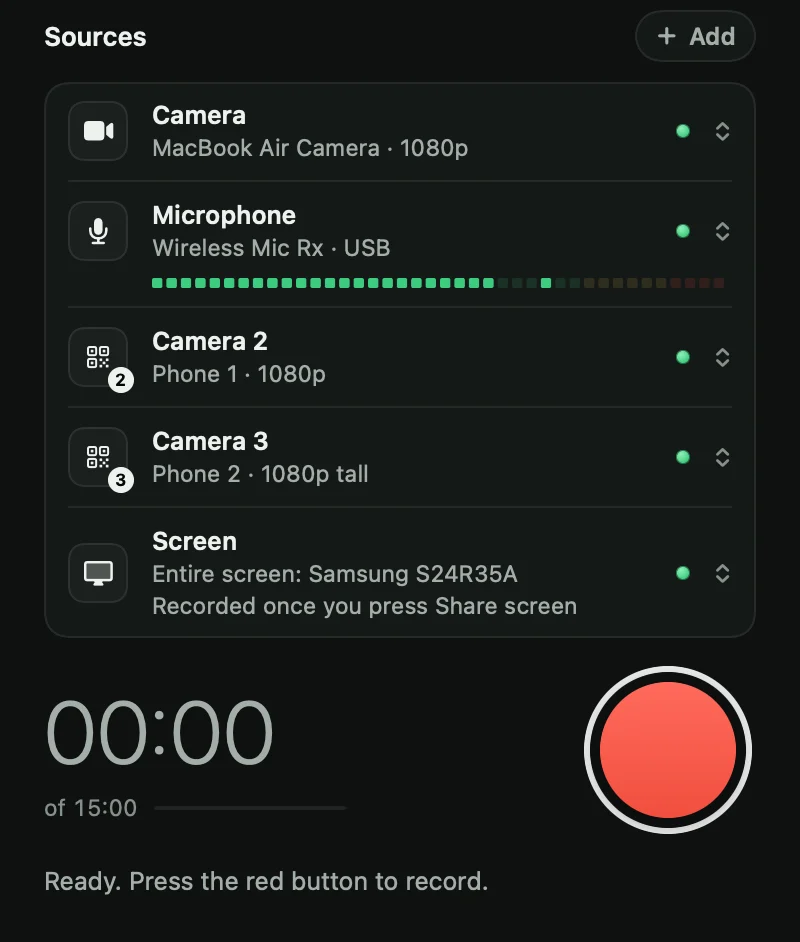
- Add the mics as above, and pick the video's sound.
- Frame each angle from the Mac. Between takes, each phone shows its own picture on its screen but sends nothing to the Mac, which saves battery.
- Listen before you start. Open Settings, Live view, pick Home Wi-Fi, and open the link on another laptop or phone. It shows every camera and the mic level. Press Listen with headphones on to hear the main mic as it records, and catch echo, hum or a buzzing fridge before it ruins an hour.

- Press the red button. After the 3, 2, 1, every phone and mic records together.
- Press stop when you are done. Vidlark lines everything up and writes a report.
Keep the live view link private: anyone who has it can see your cameras.
The files you get and how they line up
Each recording gets its own folder in /Users/Shared/Vidlark Recordings:
| File | What it is |
|---|---|
camera.mov | The main camera, with the main mic. |
camera-2.mov, camera-3.mov and on | Each phone or extra camera. |
mic-2.m4a, mic-3.m4a and on | Each extra mic. |
sync.json | How far each file is offset from the main camera. |
video.mp4 | The main camera with the mic you picked as the video's sound. Made only when you pick a mic other than the main one. |
report.md | A plain summary, including anything that went wrong. |
How the sync works. Every camera file carries the same main mic's sound, so after you stop, Vidlark compares the sound and works out exactly how each file lines up. Extra mic files are matched by sound too when they hear enough of the same voices, and by the Mac's clock when they do not. You never clap a slate.
In the Recordings page, click the take to watch it. You can switch between cameras at the same moment, and play any mic under any picture, to hear which sounds best.
Editing: switch angles by who is talking
Vidlark records and lines up; it does not edit. A free editor finishes the job. In DaVinci Resolve (free on Mac, Windows and Linux):
- Import all the camera files and the mic files.
- Select the camera files and create a multicam clip, choosing to sync the angles by sound. Because every camera file holds the same main mic, this lines up reliably.
- Put the multicam clip on the timeline with the best mic file under it. Resolve can line clips up by their waveforms too.
- Play it through and switch angles as people talk: close-up on the speaker, wide for crosstalk and laughs.
- Cut the dull bits. Cutting to another angle at each cut hides the join.
For a quick upload with no edit, use video.mp4 if you picked another mic as the video's sound, or camera.mov if the main mic was it. Either is one angle only; switching angles needs the edit.
Common problems: echo, battery, Wi-Fi
- Echo. Bare walls bounce sound. Add soft things (curtains, a rug, a sofa, blankets on stands) and keep each mic close. Listen on headphones in live view before a long take.
- Battery. Plug every phone in. A phone filming and sending video for an hour gets warm; take thick cases off.
- Wi-Fi. Keep the phones and the Mac near the router, on the same network, and keep each phone's page open. If a phone mic's Wi-Fi drops, its file stays silent for that stretch so it still lines up. If an extra camera stops early, the take carries on and the report says so.
- Notifications. Put every phone in Do Not Disturb before you start.
- Disk space. Every camera adds its own file. Check free space in Settings, This Mac, before a long episode.
Remote guests: use a different tool
Vidlark is for people in the same room as the Mac. It does not record remote guests over the internet. For those, use a tool built for it (prices and limits checked on 9 October 2026):
- Riverside records each remote guest locally on their own device and uploads the files. Its free plan has 720p video, a Riverside watermark and a one-off 2 hours of separate tracks; Pro is $29 a month, or $24 a month billed yearly. Riverside also has an in-person mode for people in the same room, in its Mac app, on Pro and above.
- Zencastr has a free plan for remote recording. Its limits have changed recently and sources disagree, so check them on the day.
If your show mixes both, record the in-room people with phones in Vidlark and the remote guest in one of these, then line up the files in your editor.
What to do next
Start with two phones and two mics, record a 10 minute test conversation, and edit it. You will learn more from that than from any gear list.
Vidlark is free: the phone camera steps and microphone steps have a picture of every screen, and the code is on GitHub. For a solo video with your screen, see How to record a YouTube video on a Mac, or the three free ways in How to record yourself and your screen on a Mac. Making lessons for a course instead? How to record online course videos at home plans a batch day. To see how Vidlark compares with other open source recorders, read Open source Loom alternatives, compared honestly.
Questions
How many cameras do I need for a two person video podcast?
Three is the classic setup: a wide shot of both people and a close-up of each. You can start with two, a wide and one close-up, and add more later.
Can I use phones as cameras for a podcast?
Yes. Recent phones film a sharp picture. Vidlark can take up to four iPhones or Android phones over Wi-Fi with no app, each recorded as its own file and lined up by sound.
Do I need a separate mic for each person?
Yes, ideally. A mic close to each mouth sounds far better than one mic in the middle of the table, and separate files let you fix one voice without touching the other.
Can Vidlark record remote guests?
No. Vidlark records people in the same room as the Mac. For remote guests, use a tool built for it, such as Riverside or Zencastr.