Mac Ready now
For Macs with Apple silicon on macOS 15 or later. It is built on your Mac from its code on GitHub, by Claude Code or by hand.
 Vidlark
Free
Vidlark
Free
An app for making videos, on a Mac or a Windows PC. One button records your camera, your mic and your screen as separate files that stay in sync. Share your screen and, when you stop, it makes the finished video.
For Macs with Apple silicon on macOS 15 or later, and PCs with Windows 11 (beta).
video.mp4camera.movscreen.movwords.jsonchapters.txtPress record once. When you stop, the take's folder has every part of it, lined up by sound, and the finished video if you shared your screen.
video.mp4The finished video, made when you share your screen.
camera.movYour camera, with your voice.
screen.movYour screen, with your voice and, if you want it, the Mac's sound.
camera-2.movEach extra camera or phone, in its own file.
mic-2.m4aEach extra microphone, in its own file.
words.jsonThe transcript, with the time of every word.
chapters.txtYouTube chapters, ready to paste into a description.
retakes.jsonEvery time you said "retake", with its time.
One take in 91 seconds.
Every take starts on your face. Share your screen when you are ready: the whole screen or one window. Click Me and your camera grows out of the face circle to fill the screen. Click Screen and it shrinks back.
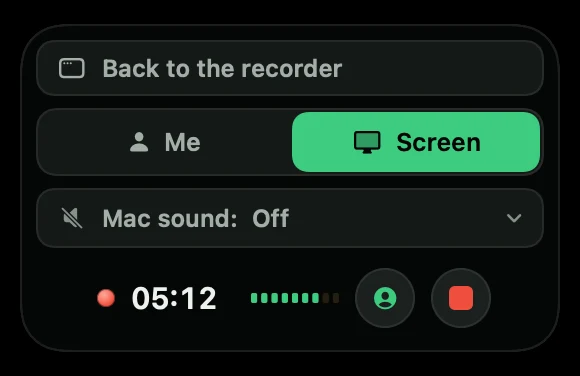
The box you control a take from. It never shows in the video.
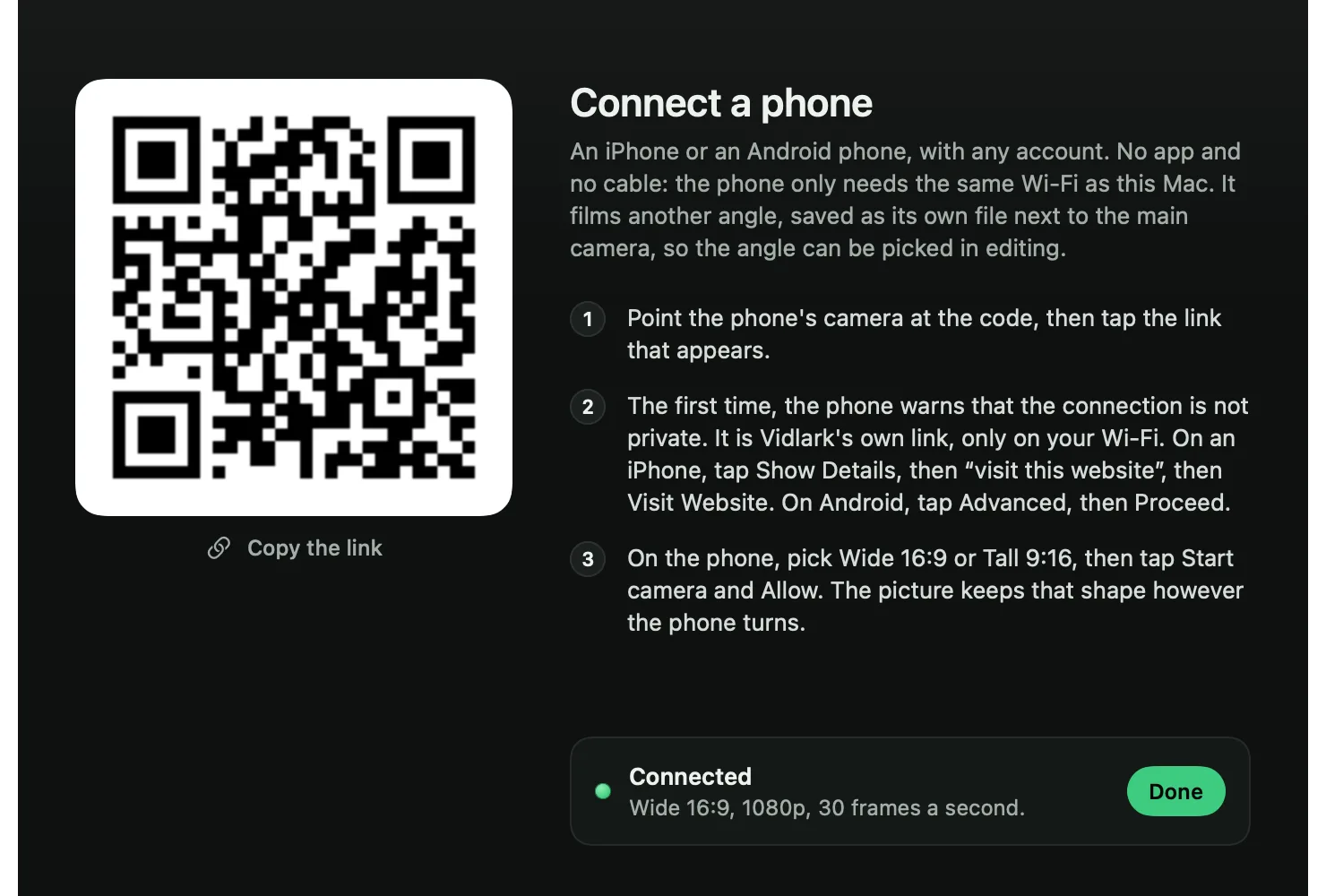
Scan a QR code with an iPhone or an Android phone and it films over your Wi-Fi. No app to install and no cable, at up to 1080p and 30 frames a second.
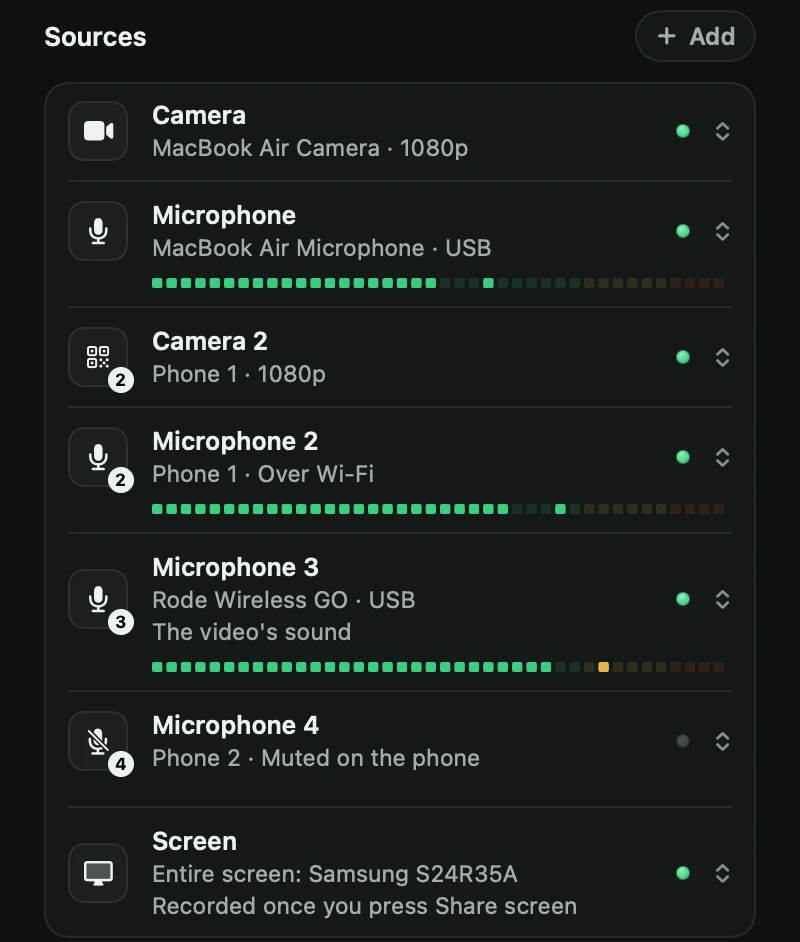
A USB mic, a wireless mic, AirPods, or a phone's mic over Wi-Fi. Every mic records its own file, and you choose which one the video uses.
Every camera and mic hears the same voice. After you stop, it uses that sound to line up every file, then writes the transcript, the YouTube chapters and a list of your retakes.
Matching the soundLined up
The files are written in 2-second pieces, so a crash keeps the take.
If the camera stops sending pictures, the take stops within about 6 seconds and says why.
That is its use between takes on a MacBook Air. When you switch to another app, the camera turns off after about 20 seconds.
Your recordings never leave your Mac. The live view reaches beyond your Wi-Fi only if you switch on Anywhere.
Every feature on this site is in the free app. There is no paid version, and the code is on GitHub.
The code is on GitHub under the MIT licence: free to read, change and share. Don't like something, or want something new? Ask Claude Code, and it changes Vidlark for you.
Free on both, from GitHub. The Windows version is a beta: it records your camera, mics and screen, and phones and live view come later.
For Macs with Apple silicon on macOS 15 or later. It is built on your Mac from its code on GitHub, by Claude Code or by hand.
For Windows 11, 64-bit. One zip from GitHub: unzip it and open Vidlark.exe. The tools it needs come inside.
Yes. Every feature is in the free app, and there is no paid version. There is no account, no subscription, no ads and no time limit, and the code is open source under the MIT licence.
Yes. On a Mac with Apple silicon and macOS 15 or later, you build it once from its code on GitHub, for free, and Claude Code can do that for you. On Windows 11 (64-bit) there is a beta to download. The Windows beta records your camera, mics and screen and makes the finished video; the transcript, phones and live view come later. See the steps.
No. Your videos have no watermark and no logo, and a take can be as long as you like.
They stay on your computer. Every take gets its own folder: on a Mac in /Users/Shared/Vidlark Recordings, and on Windows in C:\Users\Public\Videos\Vidlark Recordings. Vidlark never uploads your recordings. Every file a take leaves.
Loom uploads each video to its cloud and shares it as a link, and you need an account. Vidlark has no account and no cloud. It saves your camera, your screen and every mic as separate files on your computer, lines them up by sound, and makes the finished video there, plus a transcript and YouTube chapters on a Mac. It is made for videos you edit and upload yourself, like YouTube videos.
Tutorials
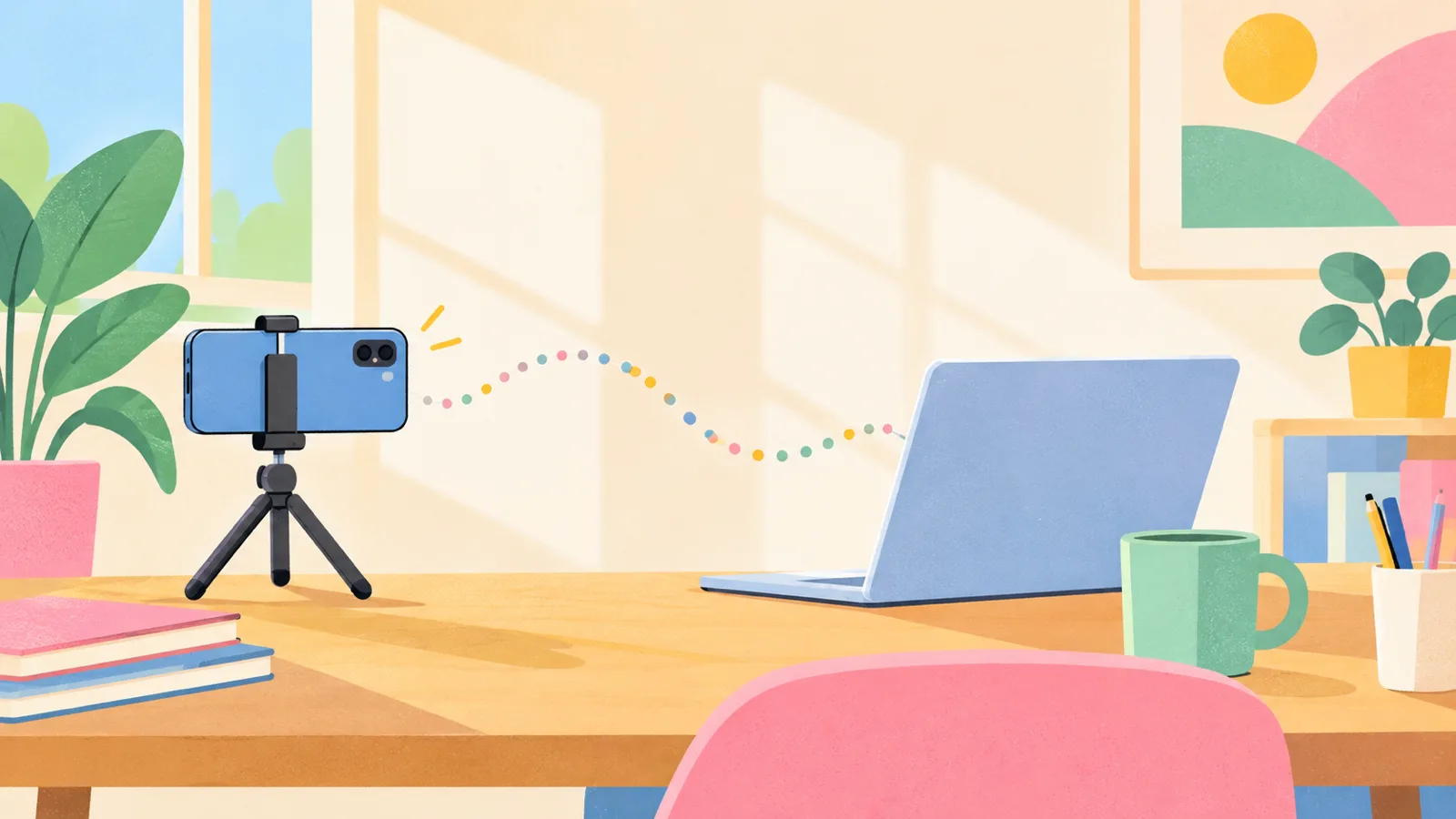
Two ways to film YouTube videos with your iPhone as your Mac's camera: Continuity Camera, or Wi-Fi and a QR code with any Apple Account. Setup and framing tips.
Use cases
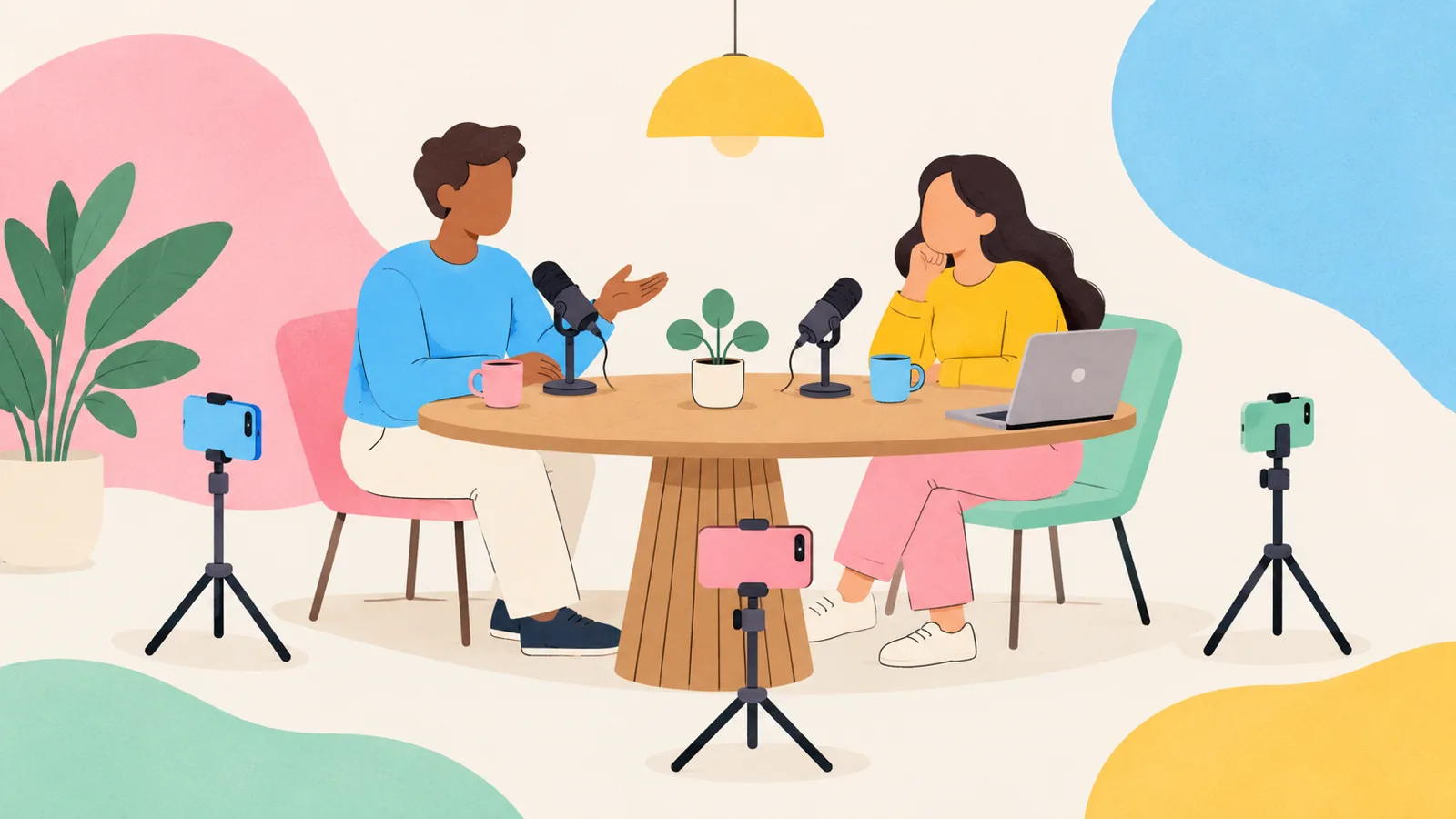
Film a two or three person video podcast with phones as cameras and a mic for each person, all on one Mac, every angle synced by sound. Setup to final edit.
Comparisons
Cap, Screenity, OBS Studio and Vidlark compared: licences in plain words, share links, self-hosting, project health on GitHub, and which one fits your videos.
Vidlark is built by Neel Madhav, a curious grade 9 student at Allen.