Vidlark
Free Mac Screen Recorders With No Watermark
The free Mac screen recorders with no watermark and no time limit, which ones also record your camera and the Mac's sound, and which Macs each one runs on.

The best free Mac screen recorders with no watermark are the ones already on your Mac (the Screenshot toolbar and QuickTime) and four free apps: OBS Studio, Cap, the Screenity Chrome extension and Vidlark. The built-in tools are fine for a plain screen recording. If you want your camera, your screen and the Mac's sound together, one of the apps saves a lot of fiddling.
Below is what each one really gives you, where the catches are, and which Macs they run on. Prices and limits checked on 9 October 2026, from each tool's own pages.
What "free" hides
Search for a free screen recorder and you will find plenty. Look closer and many are free with a catch:
- Watermarks. The free version stamps a logo on your video until you pay.
- Time caps. Recordings stop at 5 minutes, or you get a handful of videos.
- Accounts. You must sign up before you can record anything.
- Cloud uploads. Your recording goes to someone else's server by default, which matters if your screen shows anything private.
Every tool in the main list below is free of watermarks and time limits. They differ in what they record and how much setup they need.
Built in: the Screenshot toolbar and QuickTime
Every Mac has two ways to record the screen, and they are really the same recorder.
The Screenshot toolbar. Press Command-Shift-5. Pick Record Entire Screen or Record Selected Portion, then click Record. Click Options to choose your microphone, a countdown timer, where the file is saved, and whether clicks are shown. Stop from the button in the menu bar.
QuickTime Player. Choose File, then New Screen Recording (or Control-Command-N). It opens the same toolbar.
Both are free, have no watermark and no time limit, and save a .mov file.
What the built-in tools cannot do
- Record your camera as well. The usual trick is to float QuickTime's camera window on top of your screen. It works, but your face is baked into the screen picture and cannot be moved or removed later. Our guide to recording yourself and your screen on a Mac shows the steps.
- Switch between your face and your screen. There is one picture, the screen, for the whole recording.
- Record the Mac's sound on older macOS. Apple's screen recording page says that on macOS 27 or later you can choose Include System Audio. On macOS 26 and earlier there is no built-in option. Even on 27, it is every app's sound or none, so notification pings come along too.
- Keep files apart for editing. Everything is in one file.
Free apps compared
OBS Studio
OBS Studio is free, open source and unlimited. On a Mac it needs macOS 13 or later and runs on Intel and Apple silicon. You add sources to a scene: macOS Screen Capture for the screen, Video Capture Device for the webcam, and macOS Audio Capture for the Mac's sound (OBS 30 or later, all apps or one). The first time, OBS asks for Screen Recording, Camera and Microphone permission.
It can do anything, including live streaming, but you set it up before you record. Separate camera and screen files need the free Source Record plugin.
Cap
Cap is open source with a ready-made Mac installer for Apple silicon and Intel (macOS 13.1 or later recommended). Its Studio Mode records locally with no time limit and no watermark, with the screen, camera and mic on their own tracks and the Mac's sound if you want it. Its editor adds automatic zooms, smoother cursor movement and backgrounds. Instant Mode gives you a share link straight away, limited to 5 minutes on the free plan.
The free plan is for personal use. Commercial use needs a Desktop License, $29 a year or $58 once.
Screenity
Screenity is a free, open source Chrome extension. It records your screen, camera and mic, with drawing and blur tools, and needs no sign-in. It exports MP4, GIF or WebM, or saves to Google Drive. It runs wherever Chrome runs, including older and Intel Macs.
Vidlark
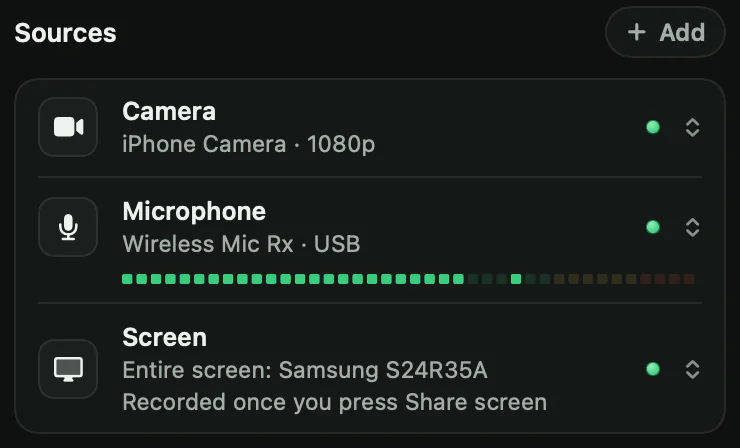
Vidlark is a free, open source Mac app made for recording videos with your face and your screen. One red button starts your camera and mic; you share your screen when you are ready.
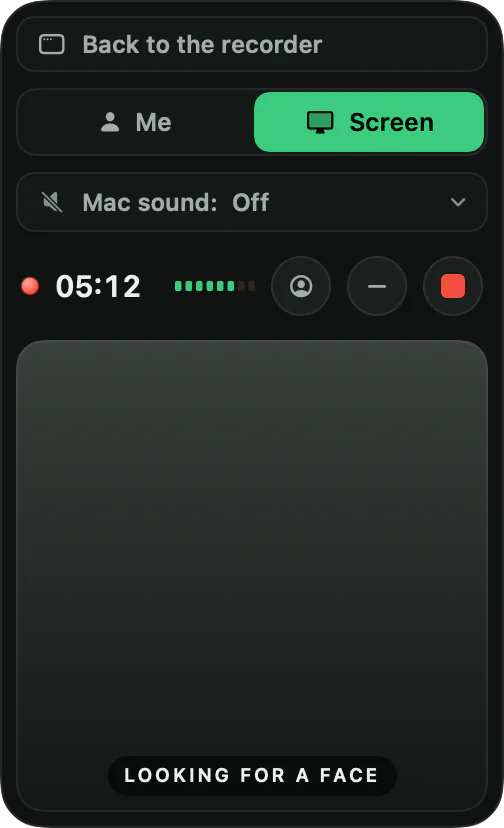
During the take, a small recording box lets you switch what the video shows with Me and Screen, and choose the Mac's sound: Off, Every app, or Only one app. The box itself never appears in the video, and neither do Notification Center's pop-ups.
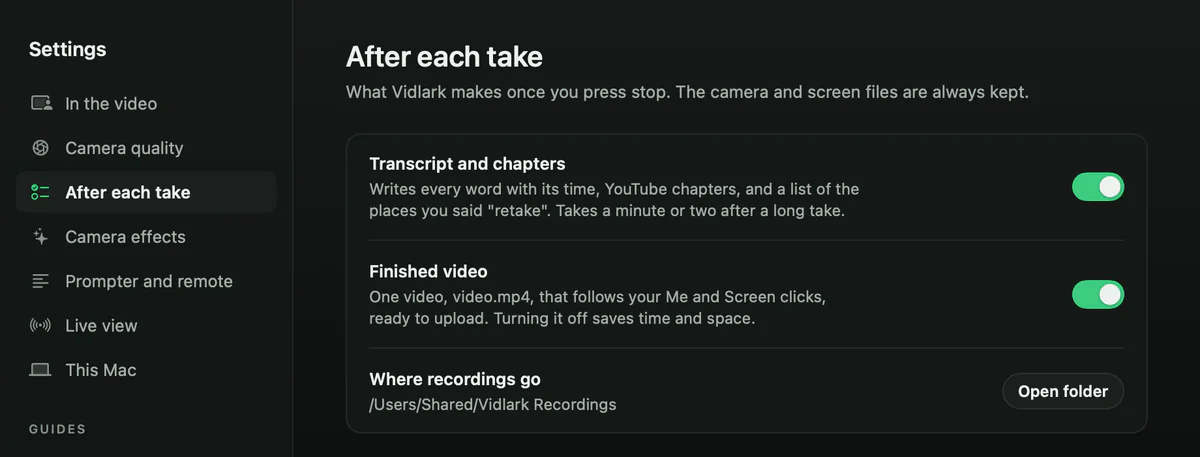
When you stop, it makes video.mp4, which follows your clicks, and keeps camera.mov and screen.mov as separate files. It also writes a transcript on your Mac, YouTube chapters and a list of every place you said "retake". You can turn those off for quick videos.
The catches, stated plainly: it needs Apple silicon (M1 or newer) and macOS 15 or later, and there is no download button yet. You build it once on your own Mac with Xcode, free, plus a free Apple Development certificate that macOS needs before it lets the app record the screen. The install guide walks through it. It has no editor and no share links. Owners of Intel Macs should pick OBS or Cap.
Freemium picks and their exact caps
These are free to start but capped. Fine for the odd clip; frustrating for regular work.
| Tool | Free plan cap | Source |
|---|---|---|
| Loom Starter | 25 videos, 5 minutes each, 720p, no downloads | loom.com/pricing |
| Zight | 5 minute recordings, 1 GB of storage, last 50 captures | zight.com/pricing |
| Screencastify | 10 videos, 30 minutes each; watermark removal is listed for paid plans | screencastify.com/pricing |
Paid Mac recorders are worth knowing about too. CleanShot X costs $35 once, with a year of updates, and records your camera and the computer's sound. Screen Studio is $29 a month, or $9 a month billed yearly, for its polished automatic zooms. Neither is free, but both are good at what they do.
If you are leaving Loom specifically, Free Loom Alternatives With No Limit, No Catch goes deeper on share links, and Loom free plan limits in 2026, checked lists every cap.
The comparison table
| Watermark | Time limit | Account needed | Camera with screen | Mac's sound | What you get | |
|---|---|---|---|---|---|---|
| Screenshot toolbar / QuickTime | No | No | No | Floating window only | macOS 27 or later, all apps | One .mov |
| OBS Studio | No | No | No | Yes, with scenes | Yes, all apps or one | MP4, MKV and more |
| Cap (free, personal use) | No, says Cap's site | None locally | Not stated | Yes | Yes, no driver needed | Separate tracks, MP4 export |
| Screenity (free) | None listed | None, says its README | No | Yes | Not checked | MP4, GIF or WebM |
| Vidlark | No | No | No | Yes, Me and Screen | Yes, all apps or one, switchable | video.mp4 plus separate camera and screen files |
Which Macs each one runs on
| Intel Macs | Apple silicon | macOS needed | |
|---|---|---|---|
| Screenshot toolbar / QuickTime | Yes | Yes | Any recent version |
| OBS Studio | Yes | Yes | 13 or later |
| Cap | Yes | Yes | 13.1 or later recommended |
| Screenity | Yes, in Chrome | Yes, in Chrome | Any that runs current Chrome |
| Vidlark | No | Yes (M1 or newer) | 15 or later |
To check your Mac, open the Apple menu, then About This Mac. Chip says Apple M1 or newer on Apple silicon; Processor means an Intel Mac.
Before a long recording, whichever app you pick
A few checks save you from finding a problem at minute 20:
- Allow screen recording once. macOS asks the first time. Switch the app on in System Settings, Privacy & Security, Screen & System Audio Recording, then quit and reopen the app, as macOS only applies it after a restart.
- Hide what should stay private. Close email, chats and password managers, or share one window instead of the whole screen (Vidlark and OBS can; the Screenshot toolbar can record a selected portion).
- Silence notifications. Turn on Do Not Disturb. Vidlark keeps Notification Center's pop-ups out of the video, but most recorders do not.
- Plug in the charger. In Vidlark's own testing, Low Power Mode, which a MacBook can switch on by itself on battery, made the camera stutter once the screen was shared.
- Check free space. Full-resolution screen video is big. A 15 minute Vidlark take needs about 3 GB, plus about 0.5 GB for the finished video.
- Record 30 seconds and play it back with the sound on, before the real take.
Our pick by job
- A quick screen-only clip: the Screenshot toolbar. It is already there.
- Your face and screen for YouTube, lessons or demos: Vidlark on an Apple silicon Mac. How to record a YouTube video on a Mac walks through a whole video with it, and How to record online course videos at home does the same for lessons.
- Polished demos with automatic zooms, for free: Cap's Studio Mode, for personal use.
- Live streaming or complex layouts: OBS Studio.
- An Intel Mac, or recording in the browser: OBS, Cap or Screenity.
- Open source you can read or change: OBS, Cap, Screenity and Vidlark all are. Open source Loom alternatives, compared honestly compares their licences.
What to do next
Start with Command-Shift-5 for anything quick. When you need your camera, your screen and the Mac's sound in one take, try a free app.
Vidlark is free, with no account, no watermark and no time limit: the how-to guide has a picture of every step, and the code is on GitHub.
Questions
Does the Mac have a free screen recorder built in?
Yes. Press Command-Shift-5 for the Screenshot toolbar, or use QuickTime Player's New Screen Recording. Both are free and add no watermark.
Can a Mac record internal audio for free?
On macOS 27 or later, the Screenshot toolbar's Options include Include System Audio. On older versions, free apps such as OBS Studio, Cap and Vidlark can record the Mac's sound without a virtual driver.
Which free Mac screen recorder also records my webcam?
OBS Studio, Cap, the Screenity Chrome extension and Vidlark all record your camera with your screen. QuickTime can only show a floating camera window that gets recorded as part of the screen.
Does Vidlark work on Intel Macs?
No. Vidlark needs a Mac with Apple silicon (M1 or newer) on macOS 15 or later. On an Intel Mac, OBS Studio or Cap are good free choices.